
Migrating from GitHub Secrets (legacy) to OIDC for Terraform deployments on AWS
1. Introduction
In this article I explain how to migrate a repository that uses GitHub Secrets (legacy) with Access Keys to OIDC, using a Terraform deployment on AWS as an example.
The goal is for you to understand why it’s worth migrating and how to do it with minimal risk and without interrupting your pipelines.
If you want the full end-to-end pipeline tutorial (with code and workflows), start with the base guide: Automating AWS resource deployment with GitHub Actions and Terraform.
Sample repos (same resources with different authentication methods):
2. Why migrate from Access Keys (Secrets) to OIDC
Before changing anything, it’s worth understanding what you gain with the switch.
2.1. Risks of static keys (legacy method)
- Accidental exposure: branches, forks, logs, screenshots, NPM packages/publications…
- Long lifetime: if they leak, the impact and blast radius can be high.
- Manual rotation: more operational overhead and human error.
- Hard to scope: policies tend to become over‑permissive.
2.2. Benefits of OIDC (recommended)
- No long‑lived secrets in GitHub → ephemeral credentials at runtime.
- Granular trust policy: restrict by org/repo/branch, and even by paths if you need to.
- Less ops: no more periodic Access Key rotations.
- Best practices: reduces attack surface and eases auditing/forensics.
2.3. When could you still use the legacy method?
- Temporary organizational constraints.
- Legacy repositories that need a gradual migration.
- Lab environments or personal accounts (even then, OIDC is better).
3. Step‑by‑step migration plan
We’ll migrate from Secrets to OIDC with a 6+1 step plan. These are short, focused steps designed to minimize risk and allow a rollback if needed.
Step 1: Inventory and preparation
- Identify repos that use
AWS_ACCESS_KEY_IDandAWS_SECRET_ACCESS_KEY. - Verify who consumes the Terraform state (S3) and which permissions are required.
- (Optional) Define Environments (e.g.,
staging,production) and who approvesapply.
Step 2: Enable GitHub’s OIDC provider in AWS (once per account)
If your account doesn’t have it yet, create the OIDC provider with these values:
- Provider URL:
https://token.actions.githubusercontent.com - Audience (client ID):
sts.amazonaws.com
Via console (recommended):
- IAM → Identity providers → Add provider.
- Type OpenID Connect.
- Issuer URL: paste
https://token.actions.githubusercontent.com. - Audience: add
sts.amazonaws.com. - Review the thumbprints shown by the console (AWS usually fills these automatically).
- Save.
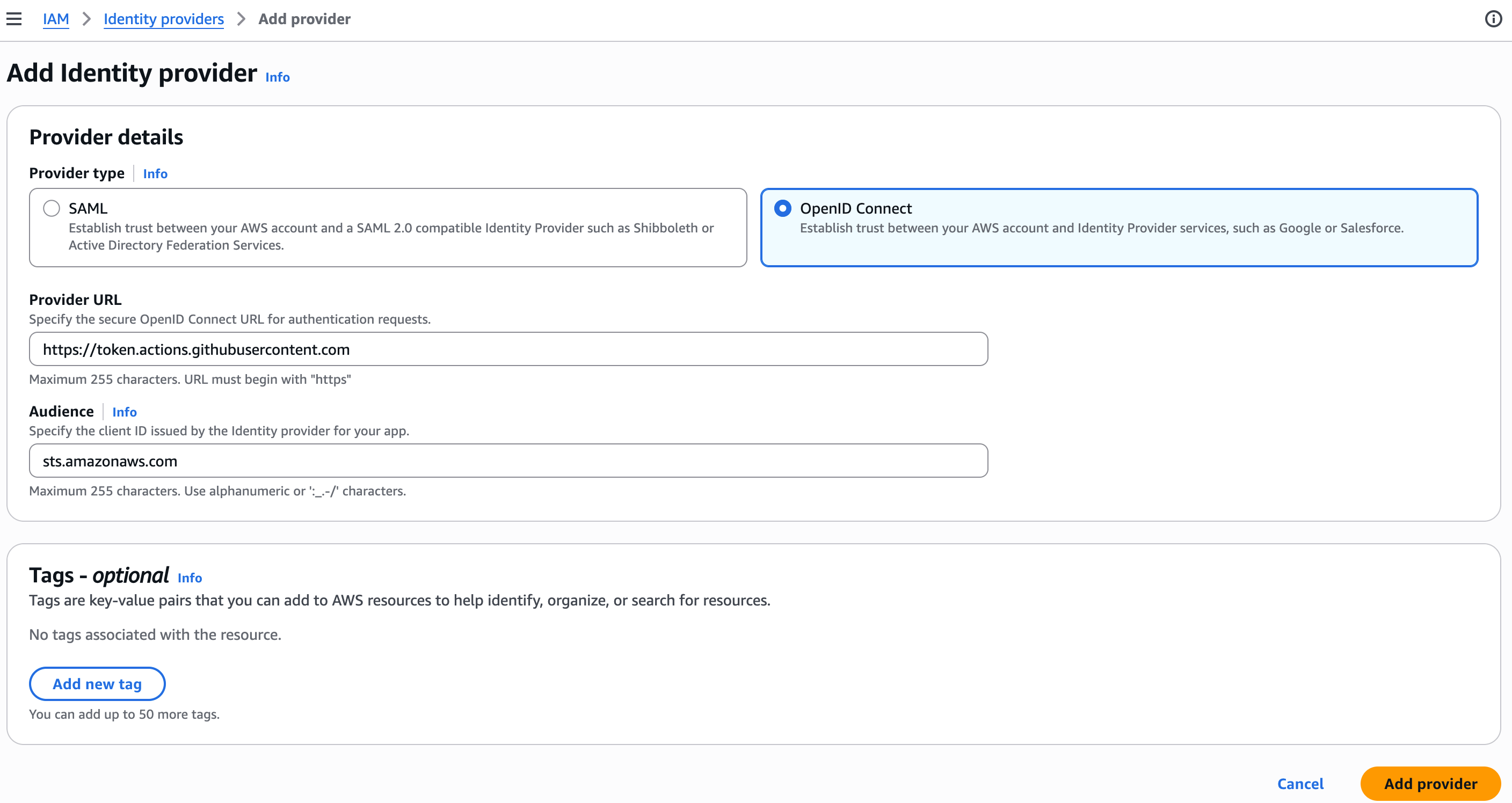
Document the provider creation (who, when, and why) and link it to your repository/project.
Step 3: Configure an IAM Role in AWS (one per repository or one per account)
The recommended approach is one IAM Role per repository so you can follow the principle of least privilege (recommended). You could also create a single IAM Role for all your GitHub deployments with broader permissions (not recommended, but more practical).
Via console (recommended):
- IAM → Roles → Create Role
- Type Custom trust policy
Provide the custom trust policy
Restricted to a specific repository and the
mainbranch:1 2 3 4 5 6 7 8 9 10 11 12 13 14 15 16 17 18
{ "Version": "2012-10-17", "Statement": [ { "Effect": "Allow", "Principal": { "Federated": "arn:aws:iam::<YOUR_ACCOUNT_ID>:oidc-provider/token.actions.githubusercontent.com" }, "Action": "sts:AssumeRoleWithWebIdentity", "Condition": { "StringEquals": { "token.actions.githubusercontent.com:aud": "sts.amazonaws.com" }, "StringLike": { "token.actions.githubusercontent.com:sub": "repo:<YOUR_ORG_OR_USER>/<YOUR_REPO>:ref:refs/heads/main" } } } ] }
Adjust
<YOUR_ORG_OR_USER>and<YOUR_REPO>. If you need to allow more branches, add moresubpatterns or broaden theStringLikepattern.Attach the least‑privilege policy
For this article’s example (state in S3 and AWS Budgets), a minimal summary of permissions would be:
- S3 (state bucket):
ListBucket,Get/PutBucketVersioning; on objectsGet/Put/Deleteoverarn:aws:s3:::<BUCKET>/* - Budgets:
Create/Update/Delete/Describe*,Create/Update/DeleteNotification(Resource: “*“ in most actions)
Why these permissions?
- S3 powers Terraform state (and lock if you use DynamoDB).
- Budgets is the example AWS resource created by the repository code (adapt to your case).
Keep the scope as tight as possible (region, table, bucket, prefixes). This reduces impact in case of misuse and aligns with the least privilege principle.
- S3 (state bucket):
- Finish creating the role and save the role ARN
Step 4: Update the workflow to use OIDC
Key snippet (add permissions and configure configure-aws-credentials with role-to-assume):
1
2
3
4
5
6
7
8
9
permissions:
  id-token: write
  contents: read

- name: Configure AWS credentials (OIDC)
  uses: aws-actions/configure-aws-credentials@v4
  with:
    role-to-assume: ${{ vars.AWS_ROLE_FOR_GITHUB_DEPLOYMENTS }}
    aws-region: ${{ env.AWS_REGION }}
You can either hardcode the role-to-assume value or define a GitHub repository variable and reference it in the workflow.
In my case I create a variable:
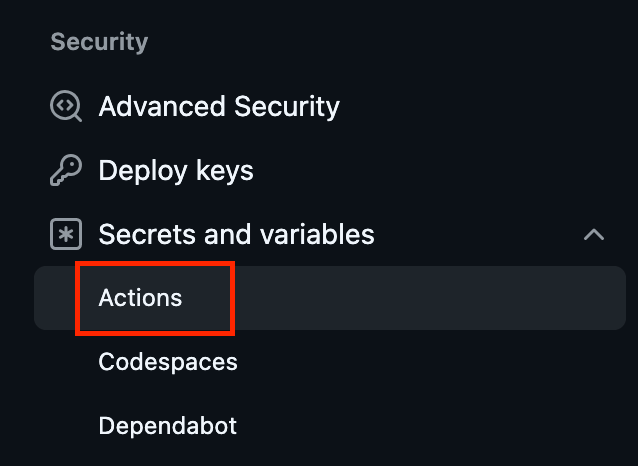
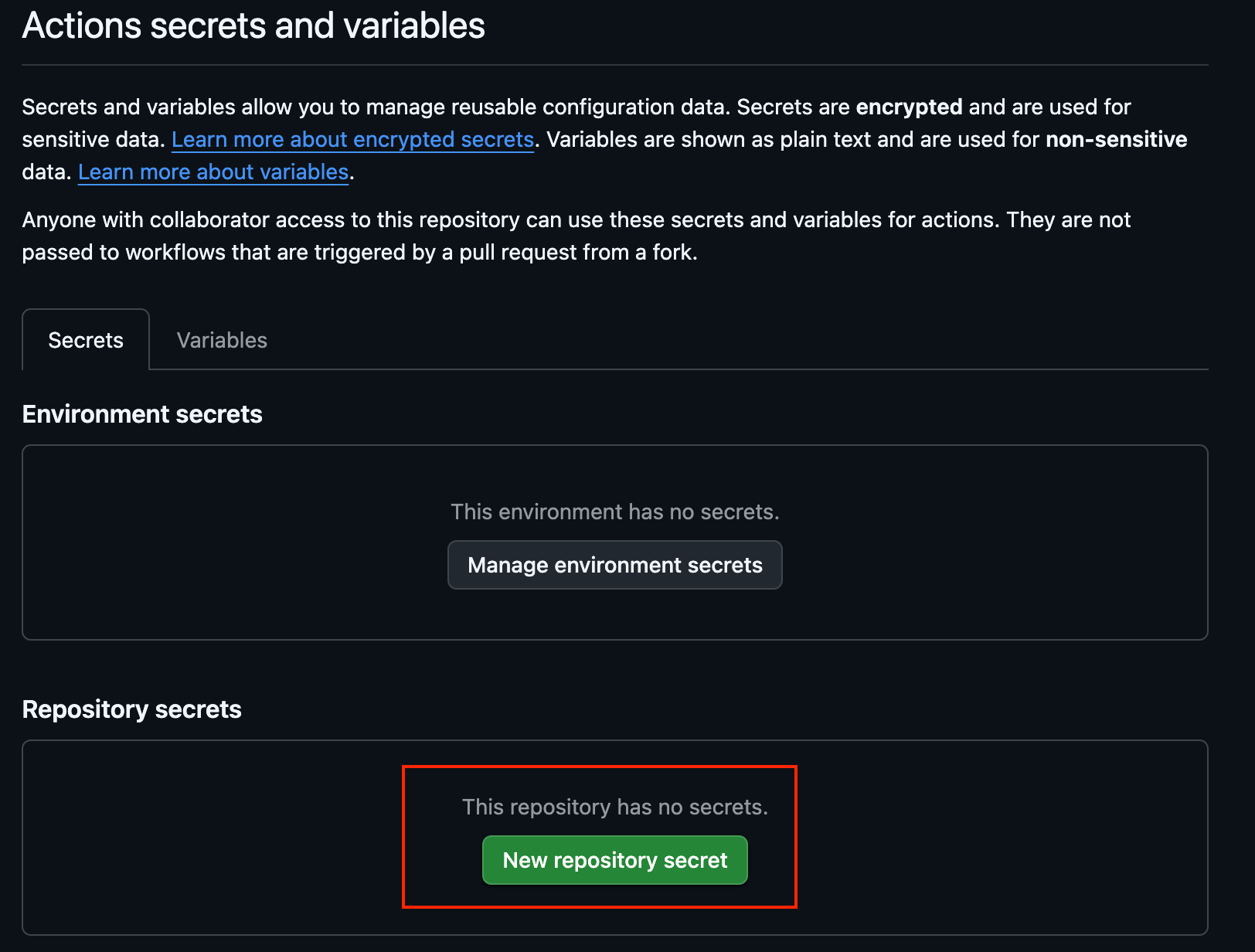
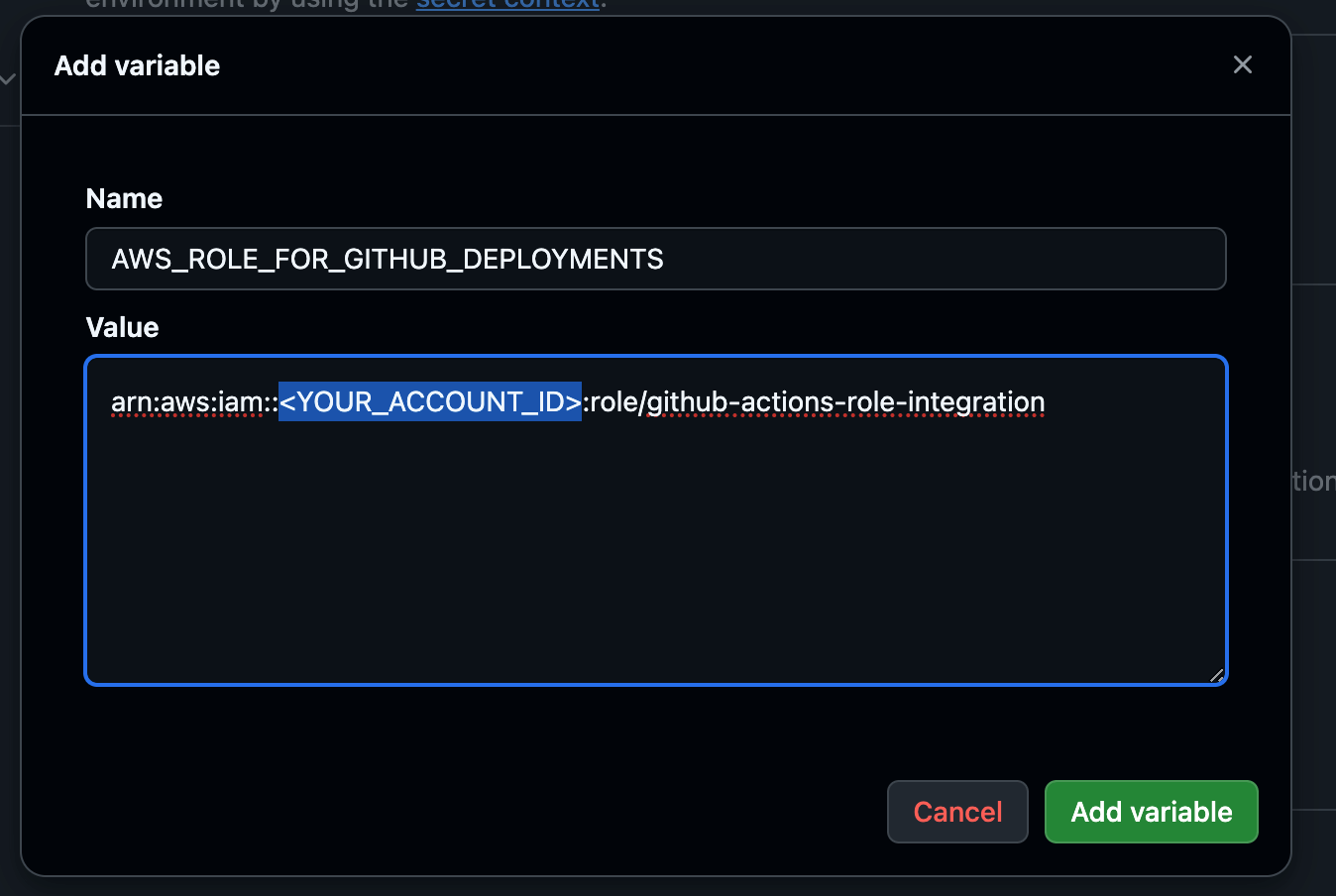
1
2
3
4
5
6
7
8
9
permissions:
  id-token: write
  contents: read

- name: Configure AWS credentials (OIDC)
  uses: aws-actions/configure-aws-credentials@v4
  with:
    role-to-assume: ${{ vars.AWS_ROLE_FOR_GITHUB_DEPLOYMENTS }}
    aws-region: ${{ env.AWS_REGION }}
Remember to reference the
role-to-assumevariable everywhere you configure AWS credentials.
Here’s the full deployment workflow (with plan/apply/manual destroy, and optional approvals):
1
2
3
4
5
6
7
8
9
10
11
12
13
14
15
16
17
18
19
20
21
22
23
24
25
26
27
28
29
30
31
32
33
34
35
36
37
38
39
40
41
42
43
44
45
46
47
48
49
50
51
52
53
54
55
56
57
58
59
60
61
62
63
64
65
66
67
68
69
70
71
72
73
74
75
76
77
78
79
80
81
82
83
84
85
86
87
88
89
90
91
92
93
94
95
96
97
98
99
100
101
102
103
104
105
106
107
108
109
110
111
112
113
114
115
116
117
118
119
120
121
122
123
124
125
126
127
128
129
130
131
132
133
134
135
136
137
138
139
140
141
142
143
144
145
146
147
148
149
150
151
152
153
154
155
156
157
158
159
160
161
162
name: Terraform Deploy (OIDC)

on:
  push:
    branches: [ main ]
    paths:
      - '**.tf'
      - '.github/workflows/terraform-deploy.yml'
  pull_request:
    branches: [ main ]
    paths:
      - '**.tf'
      - '.github/workflows/terraform-deploy.yml'
  workflow_dispatch:
    inputs:
      action:
        description: "Select action to run"
        type: choice
        required: true
        options:
          - plan-apply
          - destroy
        default: plan-apply
      var_file:
        description: "Optional .tfvars file (e.g., dev.tfvars)"
        required: false
        default: ""

permissions:
  id-token: write   # required for OIDC
  contents: read    # required for checkout

env:
  AWS_REGION: eu-west-1
  TF_IN_AUTOMATION: true
  STATE_BUCKET: terraform-tfstate-playingaws-poc  # <- keep in sync with backend bucket

concurrency:
  group: terraform-${{ github.ref }}
  cancel-in-progress: false

jobs:
  plan:
    name: Terraform Plan
    runs-on: ubuntu-latest
    # run on push/PR, or when manually triggered with action=plan-apply
    if: github.event_name != 'workflow_dispatch' || github.event.inputs.action == 'plan-apply'
    steps:
      - name: Checkout
        uses: actions/checkout@v4

      - name: Setup Terraform
        uses: hashicorp/setup-terraform@v3

      - name: Configure AWS credentials (OIDC)
        uses: aws-actions/configure-aws-credentials@v4
        with:
          role-to-assume: ${{ vars.AWS_ROLE_FOR_GITHUB_DEPLOYMENTS }} # or hardcode "arn:aws:iam::<YOUR_ACCOUNT_ID>:role/<ROLE_FOR_GITHUB>"
          aws-region: ${{ env.AWS_REGION }}

      # Optional safety net to avoid init failures if the state bucket was deleted
      - name: Ensure backend bucket exists (optional)
        run: |
          if ! aws s3api head-bucket --bucket "$STATE_BUCKET" 2>/dev/null; then
            aws s3api create-bucket --bucket "$STATE_BUCKET" --region "$AWS_REGION" --create-bucket-configuration LocationConstraint="$AWS_REGION"
            aws s3api put-bucket-versioning --bucket "$STATE_BUCKET" --versioning-configuration Status=Enabled
          fi

      - name: Terraform Init
        run: terraform init -input=false

      - name: Terraform Format Check
        run: terraform fmt -check

      - name: Terraform Validate
        run: terraform validate

      - name: Terraform Plan
        run: |
          if [ -n "${{ github.event.inputs.var_file }}" ]; then
            terraform plan -input=false -out=tfplan -var-file="${{ github.event.inputs.var_file }}"
          else
            terraform plan -input=false -out=tfplan
          fi

      - name: Upload plan artifact
        uses: actions/upload-artifact@v4
        with:
          name: tfplan
          path: tfplan

  apply:
    name: Terraform Apply (requires approval)
    needs: plan
    runs-on: ubuntu-latest
    # do not apply on PRs; allow on push or manual action=plan-apply
    if: github.event_name != 'pull_request' && (github.event_name != 'workflow_dispatch' || github.event.inputs.action == 'plan-apply')
    environment:
      name: production   # configure required reviewers in Settings → Environments → production
    steps:
      - name: Checkout
        uses: actions/checkout@v4

      - name: Setup Terraform
        uses: hashicorp/setup-terraform@v3

      - name: Configure AWS credentials (OIDC)
        uses: aws-actions/configure-aws-credentials@v4
        with:
          role-to-assume: ${{ vars.AWS_ROLE_FOR_GITHUB_DEPLOYMENTS }}
          aws-region: ${{ env.AWS_REGION }}

      - name: Terraform Init
        run: terraform init -input=false

      - name: Download plan artifact
        uses: actions/download-artifact@v4
        with:
          name: tfplan
          path: .

      - name: Terraform Apply
        run: terraform apply -input=false tfplan

  destroy:
    name: Terraform Destroy (manual)
    runs-on: ubuntu-latest
    # only when manually triggered with action=destroy
    if: github.event_name == 'workflow_dispatch' && github.event.inputs.action == 'destroy'
    environment:
      name: production   # optional: require approval for destroys as well
    steps:
      - name: Checkout
        uses: actions/checkout@v4

      - name: Setup Terraform
        uses: hashicorp/setup-terraform@v3

      - name: Configure AWS credentials (OIDC)
        uses: aws-actions/configure-aws-credentials@v4
        with:
          role-to-assume: ${{ vars.AWS_ROLE_FOR_GITHUB_DEPLOYMENTS }}
          aws-region: ${{ env.AWS_REGION }}

      # Optional safety net (same as in plan)
      - name: Ensure backend bucket exists (optional)
        run: |
          if ! aws s3api head-bucket --bucket "$STATE_BUCKET" 2>/dev/null; then
            aws s3api create-bucket --bucket "$STATE_BUCKET" --region "$AWS_REGION" --create-bucket-configuration LocationConstraint="$AWS_REGION"
            aws s3api put-bucket-versioning --bucket "$STATE_BUCKET" --versioning-configuration Status=Enabled
          fi

      - name: Terraform Init
        run: terraform init -input=false

      - name: Terraform Destroy
        run: |
          if [ -n "${{ github.event.inputs.var_file }}" ]; then
            terraform destroy -input=false -auto-approve -var-file="${{ github.event.inputs.var_file }}"
          else
            terraform destroy -input=false -auto-approve
          fi
Step 5: Validate you’re using the OIDC role
You can validate this in the workflow itself (recommended) or from your machine if you assume the role manually.
In the workflow (temporary diagnostic step):
1
2
- name: Who am I?
  run: aws sts get-caller-identity
From your machine (if you assume the OIDC role with your tools):
1
aws sts get-caller-identity
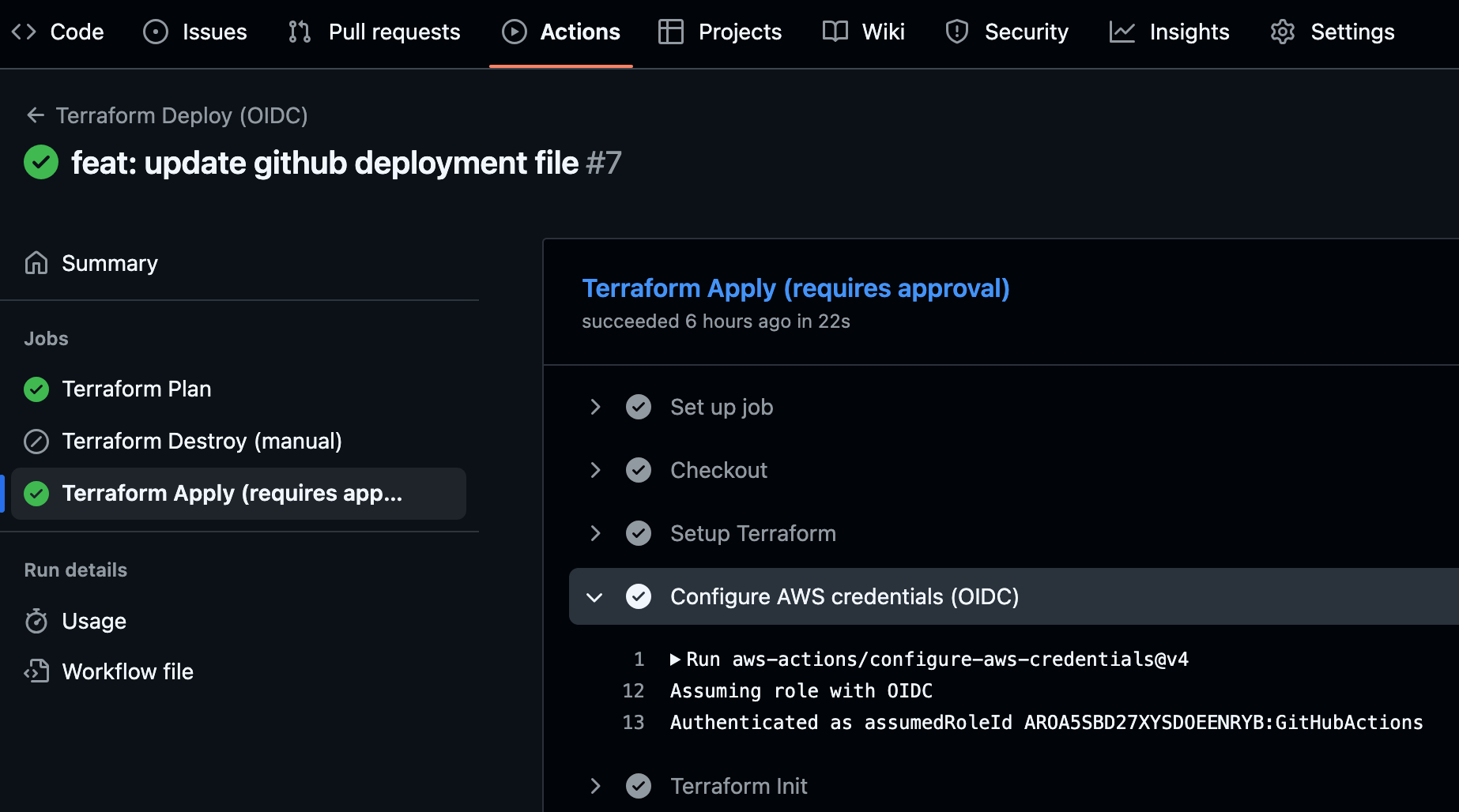
In both cases you should see the IAM Role in the Arn field. If you see an IAM user, you are still using Access Keys (legacy).
You can also validate the workflow run and check the logs:
Depending on the project and environment, this may be another option. In any case, the recommendation is to test that the configuration is correct before running it…
Step 6: Retire legacy secrets and clean up
- Disable the old Secrets‑based workflow (or leave it as manual
workflow_dispatchonly, for emergencies). - Delete
AWS_ACCESS_KEY_IDandAWS_SECRET_ACCESS_KEYin Settings → Secrets and variables → Actions. - Review CloudTrail and IAM Access Analyzer to confirm there are no residual uses.
Step 7: Monitoring and light post‑mortem
- Add basic alerts (job failures, OIDC failures).
- Document migration incidents (what went well, lessons learned).
4. Common errors and how to fix them
Frequent issues in real‑world migrations (with typical messages and quick fixes):
- Missing S3 backend
- Error:
Error: Failed to get existing workspaces: S3 bucket "<bucket>" does not exist. - Fix: create the bucket (with versioning) and run
terraform init -reconfigure. In CI, add the “Ensure backend bucket exists” step. With TF ≥ 1.10, useuse_lockfile = truein the backend and removedynamodb_table.
- Error:
- Budget resource already exists
- Error:
DuplicateRecordException: ... the budget already exists. - Fix: add a stable suffix with
random_idinnameor delete/import the existing budget.
- Error:
- OIDC credentials not loaded
- Error:
Credentials could not be loaded, please check your action inputs: Could not load credentials from any providers - Fix: check
id-token: write, supported event (no PRs from fork), OIDC provider in AWS and trust policy; verifyrole-to-assumeis not empty (variable/secret correctly defined).
- Error:
- Invalid ARN when assuming the role
- Error:
Could not assume role with OIDC: Request ARN is invalid - Fix: avoid hardcoding; use the same variable/secret in all jobs, e.g.:
role-to-assume: $. Ensure the ARN is a role, with no stray spaces or quotes, and that it exists in the correct partition.
- Error:
- State lock in S3
- Error:
Error acquiring the state lock … PreconditionFailed (StatusCode: 412) Fix: avoid race conditions with
1
2
3
concurrency:
  group: terraform-state
  cancel-in-progress: true
add
-lock-timeout=5mand use a different state key for PRs (key=poc/pr-<num>/terraform.tfstate). If it got stuck:terraform force-unlock <LOCK_ID>(with care).
- Error:
- Missing OIDC permission
- Error: (no token)
permissions: id-token: writemissing in workflow/job Fix: add
1
2
3
permissions:
  id-token: write
  contents: read
- Error: (no token)
- Trust policy mismatch
- Error: aud/sub don’t match
aud≠sts.amazonaws.comorsubdoesn’t match repo/branch/event - Fix:
aud: sts.amazonaws.comandsub: repo:ORG/REPO:ref:refs/heads/*(addpull_request/refs/tags/*if applicable).
- Error: aud/sub don’t match
- Role lacks sufficient permissions
- Error: AccessDenied in S3/DynamoDB/Budgets
- Fix: least privilege for S3 (state), Budgets and (if you use it) DynamoDB; scope by bucket/table/region.
- Missing approvals
- Behavior:
applyruns without prior review - Fix: use
environment:and configure required reviewers in GitHub → Settings → Environments.
- Behavior:
- Misconfigured paths/triggers
- Symptom: pipeline doesn’t trigger / triggers too often
- Fix: review
on.push.paths/paths-ignoreto include/ignore the right files.
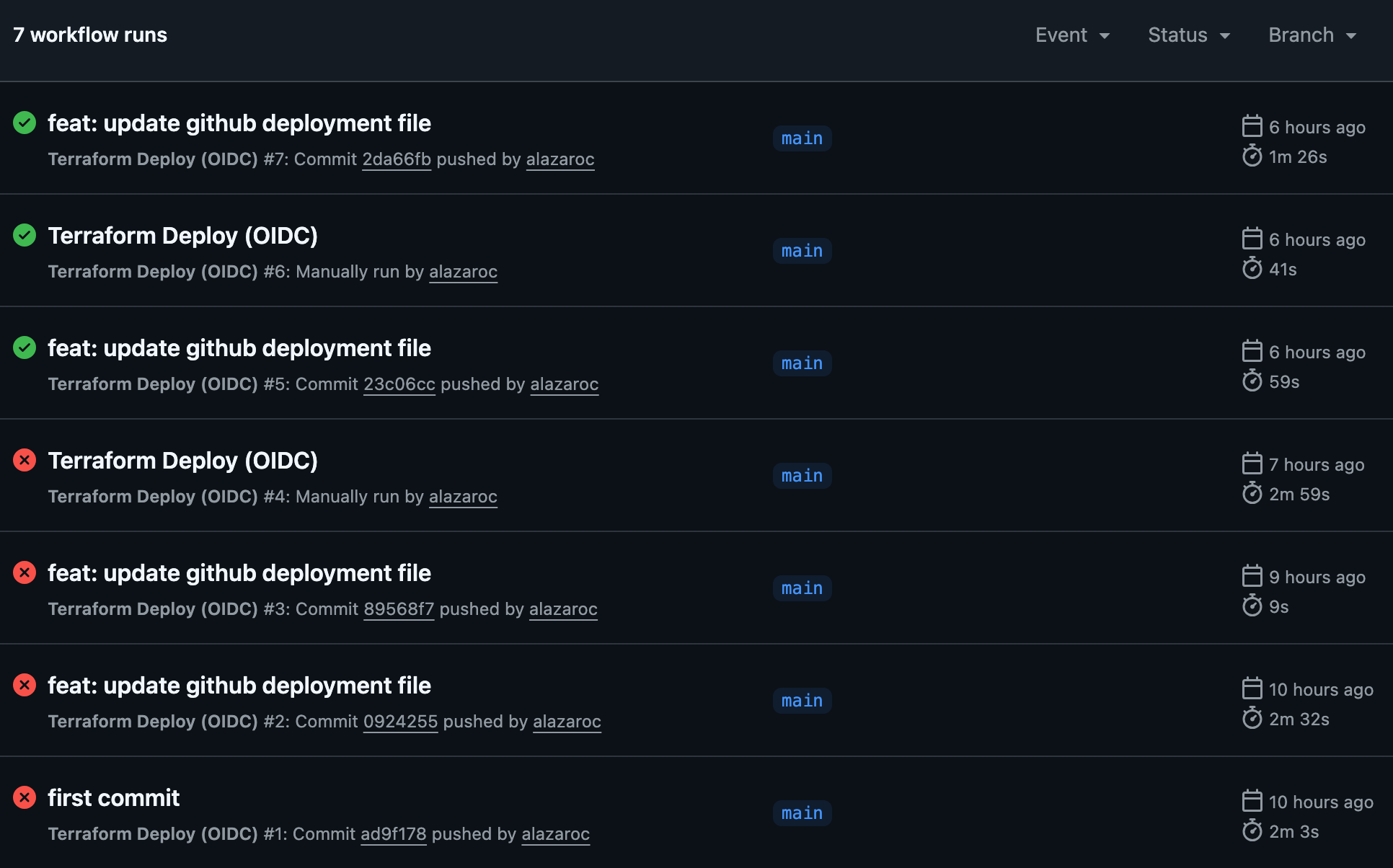
A screenshot with some of the tests…
5. Migration checklist (summary)
- 1. Inventory repos with Access Keys in Secrets.
- 2. Create/validate OIDC provider in AWS.
- 3. Create IAM Role (OIDC trust policy and attach least‑privilege policy).
- 4. Update workflow to OIDC (
id-token: write+role-to-assume). - 5. Validate with
aws sts get-caller-identity. - 6. Retire legacy secrets and disable the old workflow.
- (Optional) Enable Environment Protection Rules for
apply.
6. Conclusion
Migrating from Access Keys in Secrets to OIDC dramatically reduces risk, simplifies operations, and aligns your pipelines with security best practices.
If you need a working example, check out:
- My base article explaining the full process of automating AWS resource deployment with GitHub Actions and Terraform.
- My GitHub repositories: